
How to Edit your Template
Edit a template to update its structure, styles, or content.
Steps
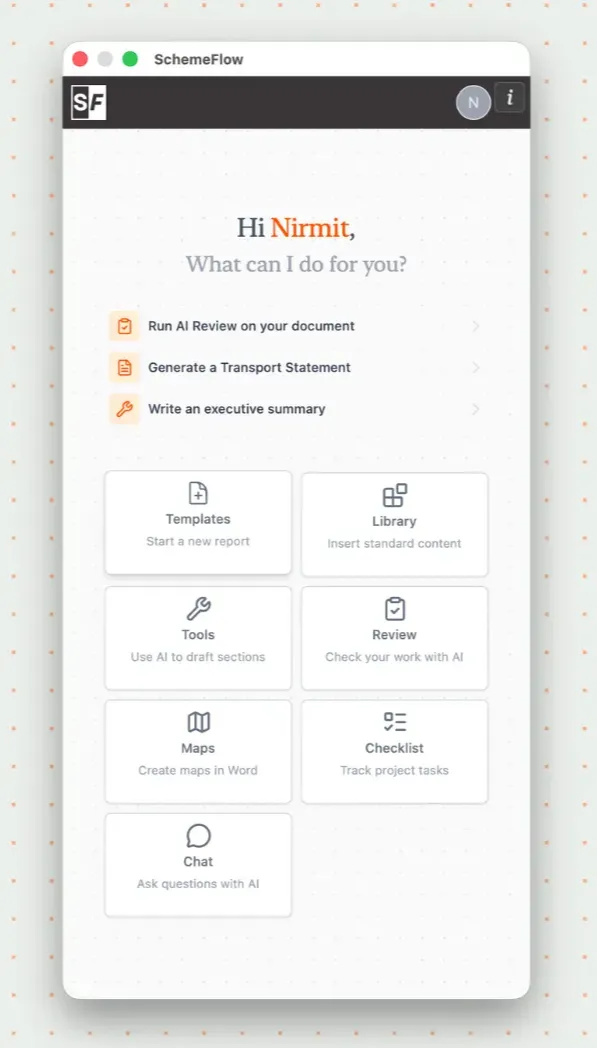
Open SchemeFlow. You should see the Home page by default. If not, click the back button in the top-left corner.
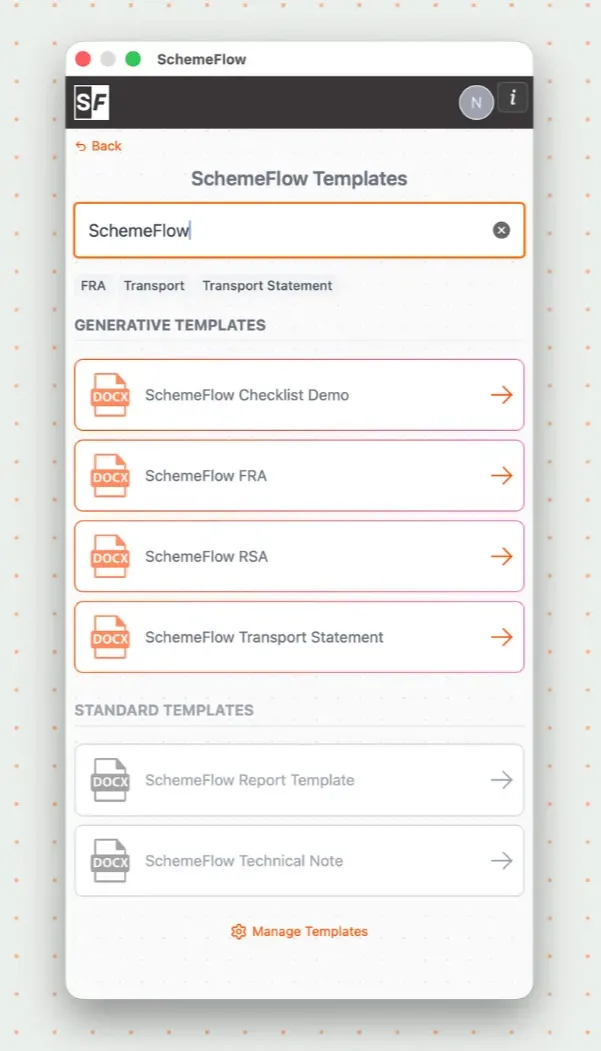
Go to the Templates page.
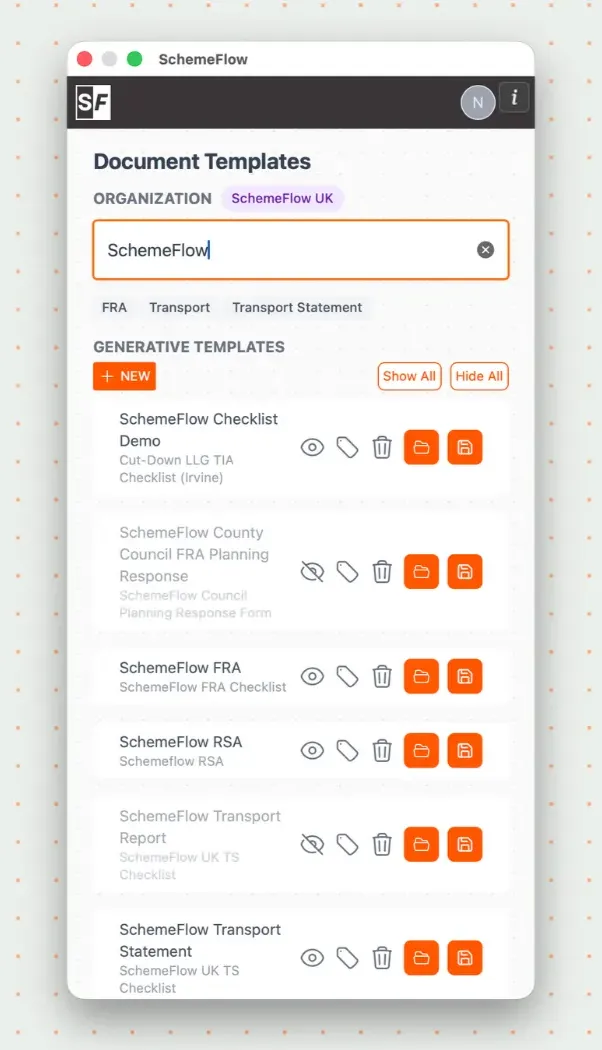
Find the template and hover over it to reveal the ⋮ (three dots) menu. This menu replaces the old per-template buttons — it contains all of a template's actions: Open Template, Upload new version, Edit Tags, and Delete.
To edit the template's content, click Open Template. The template opens as a new Word document where you can make changes such as:
- Updating dates (e.g. 2025 → 2026)
- Updating wording or guidance
- Making structural or formatting changes
To rename the template, change its tags, or set a default checklist, choose Edit Tags from the same menu and update the details in the dialog.
Notes
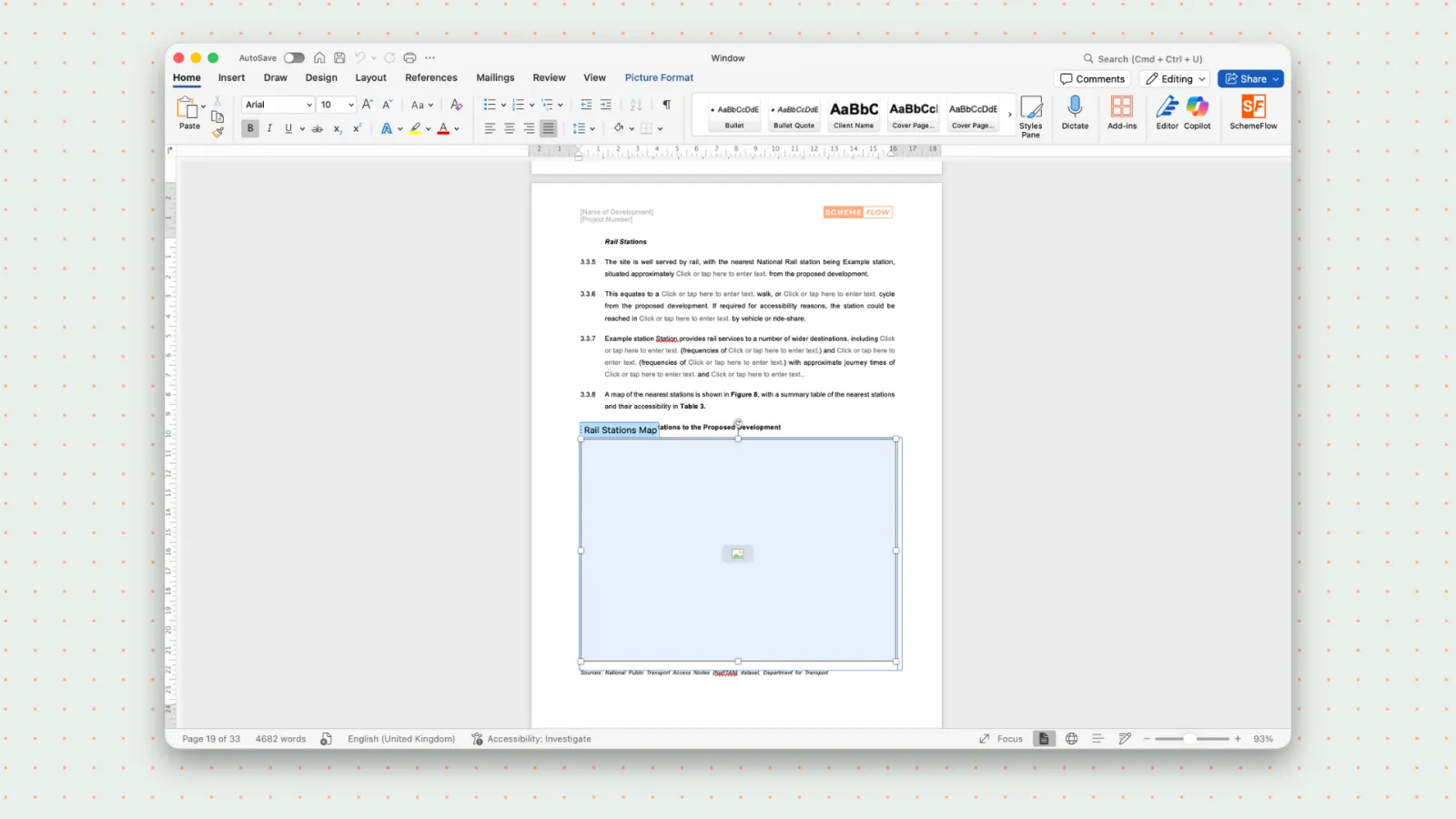
The Word document includes SchemeFlow tags and placeholders used for maps and dynamic content.
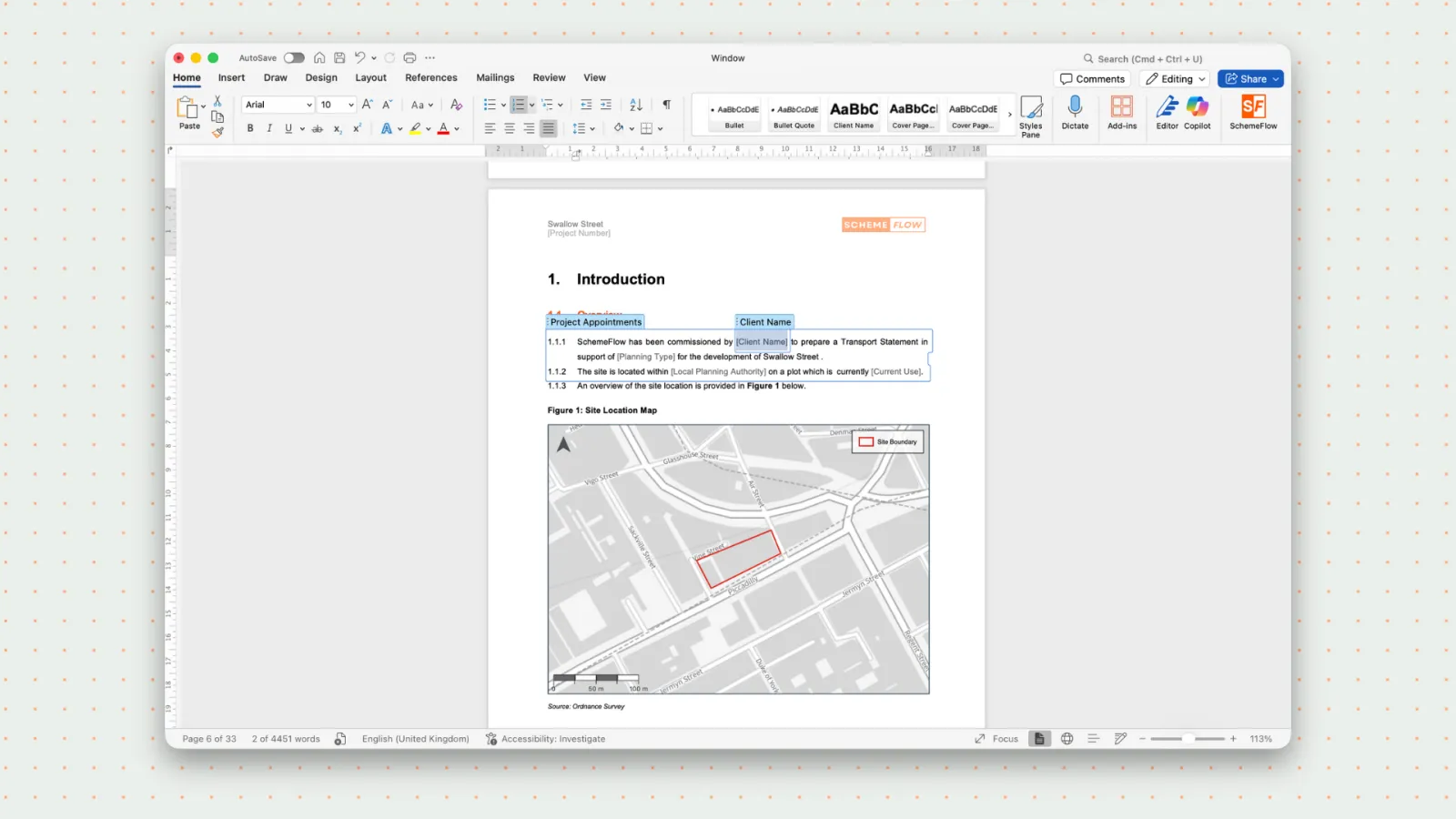
It is best practice not to edit or remove these tags, as this may break the template. You can safely edit the surrounding text, headings, and styles.
Once you have finished editing the content in Word, save your changes back to SchemeFlow with Upload new version — see How to Upload your Template.