
How do I update a Template?
Edit and save changes to a template.
Steps
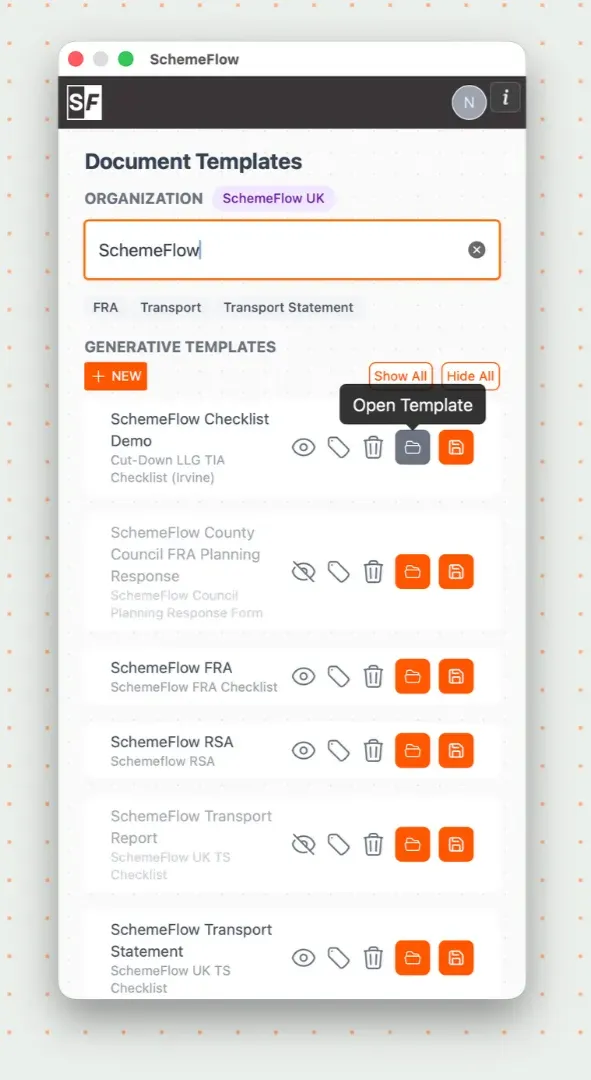
Open SchemeFlow and go to the Templates page.
Find the template you want to update, hover over it to reveal the ⋮ (three dots) menu, and click Open Template. This opens the template as a new Word document, ready to edit.
Edit the document as needed (for example, updating dates, wording, or guidance).
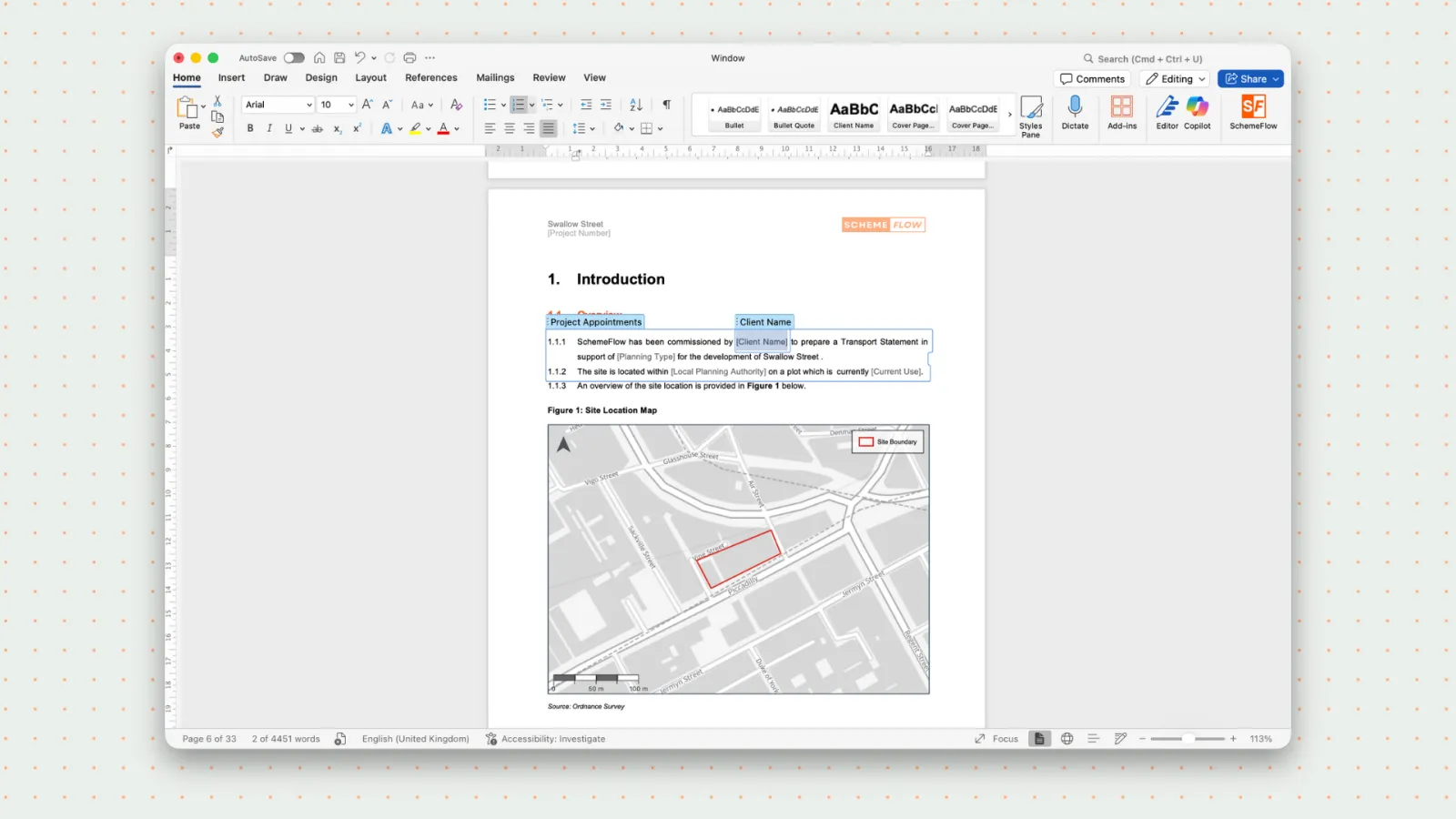
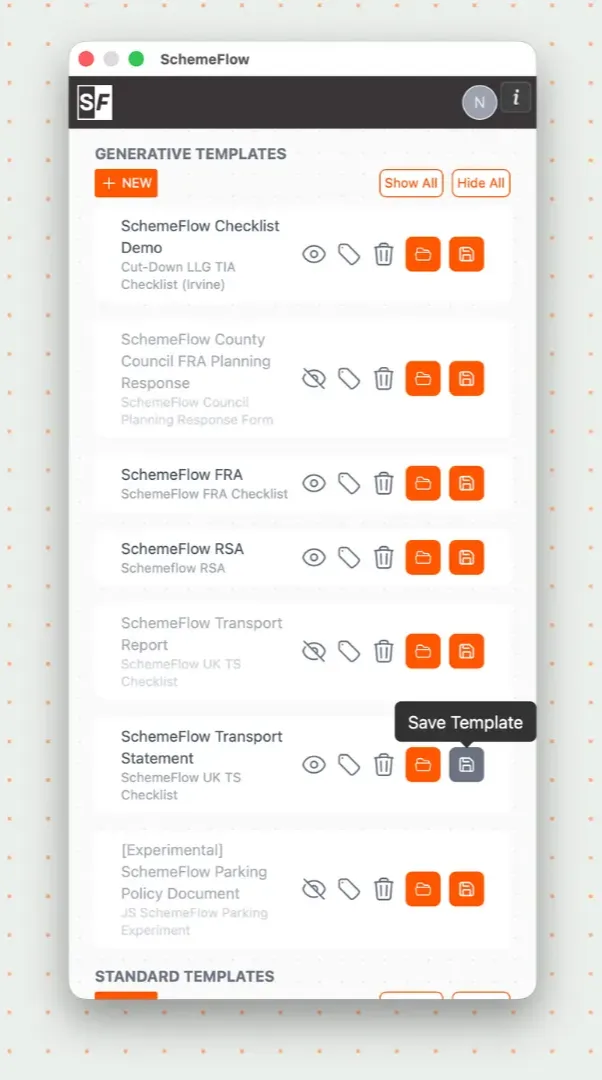
Once your changes are complete, make sure the updated document is still open in Word and the SchemeFlow sidebar is visible.
Reopen the Templates page, hover over the same template's ⋮ menu, and click Upload new version to save your changes back to SchemeFlow.
Notes
- The document must be open in Word when you click Upload new version.
- Changes are saved to the template and will apply to future reports created from it.
WARNING
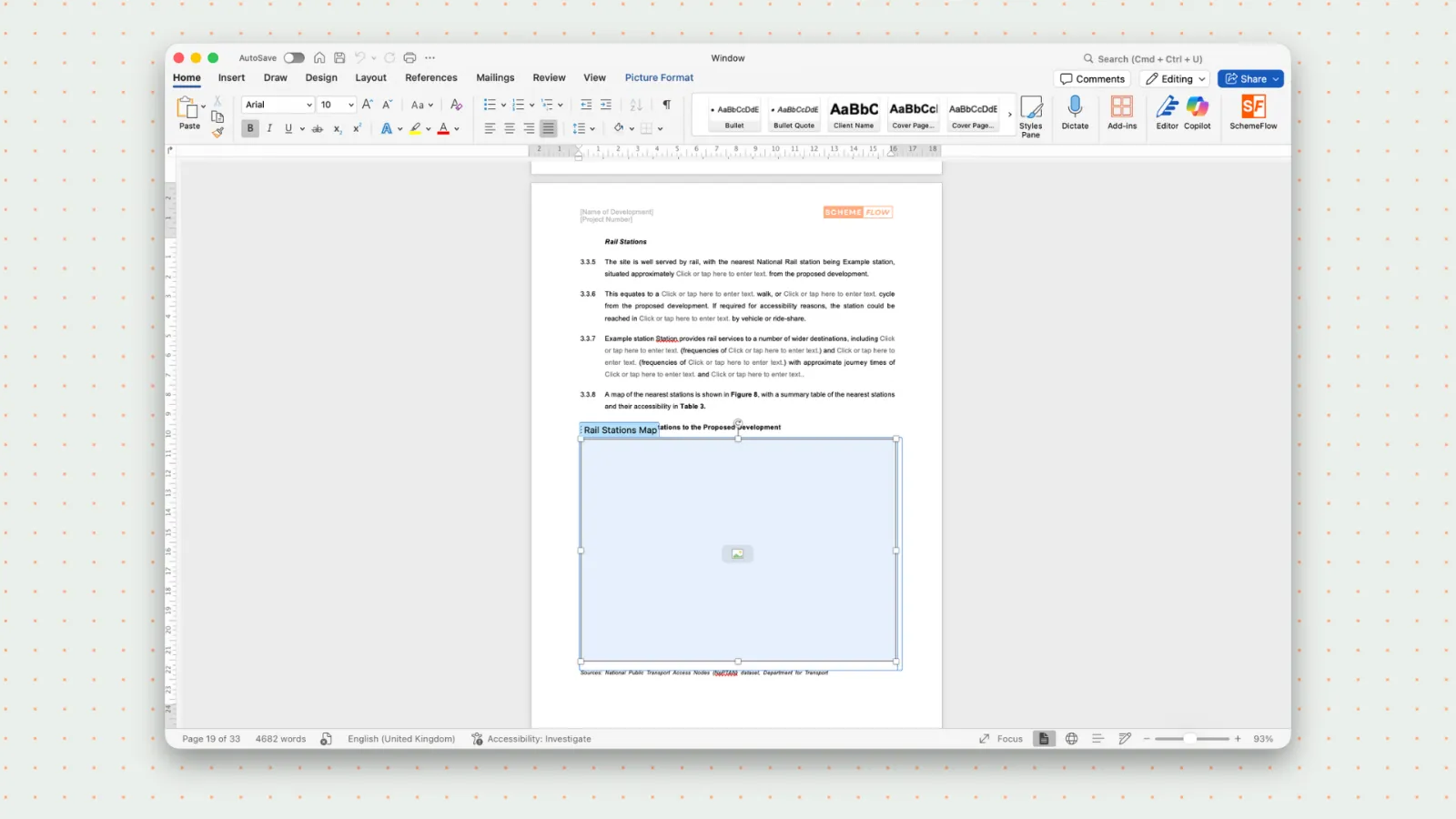
Avoid editing or removing SchemeFlow tags or placeholders, as this may break template functionality.
For more detail, see How to edit your template and How to upload your template.