
How do I filter data on a map?
Filter map data to show relevant information.
You can filter map data in two ways, depending on how the data was added.
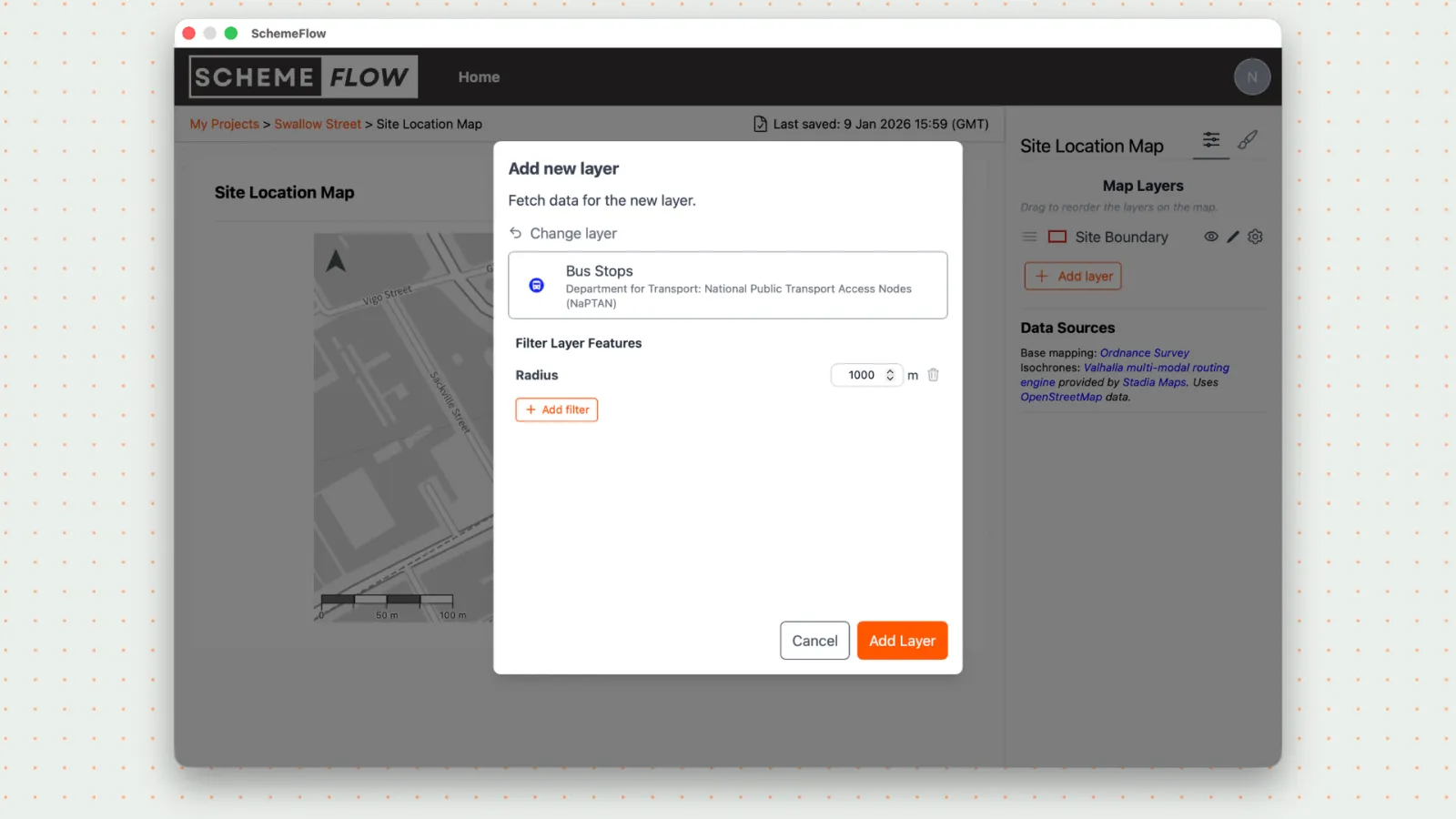
Option 1: Filter data when adding a Data Library layer
- Open the map you want to edit.
- Click Add Layer, then select Data Library.
- Choose the dataset you want to add.
- If the dataset supports filtering, you'll be shown filter options.
- Apply the filters to control which data is displayed on the map.
- Click Update to apply the filtered data to your document.
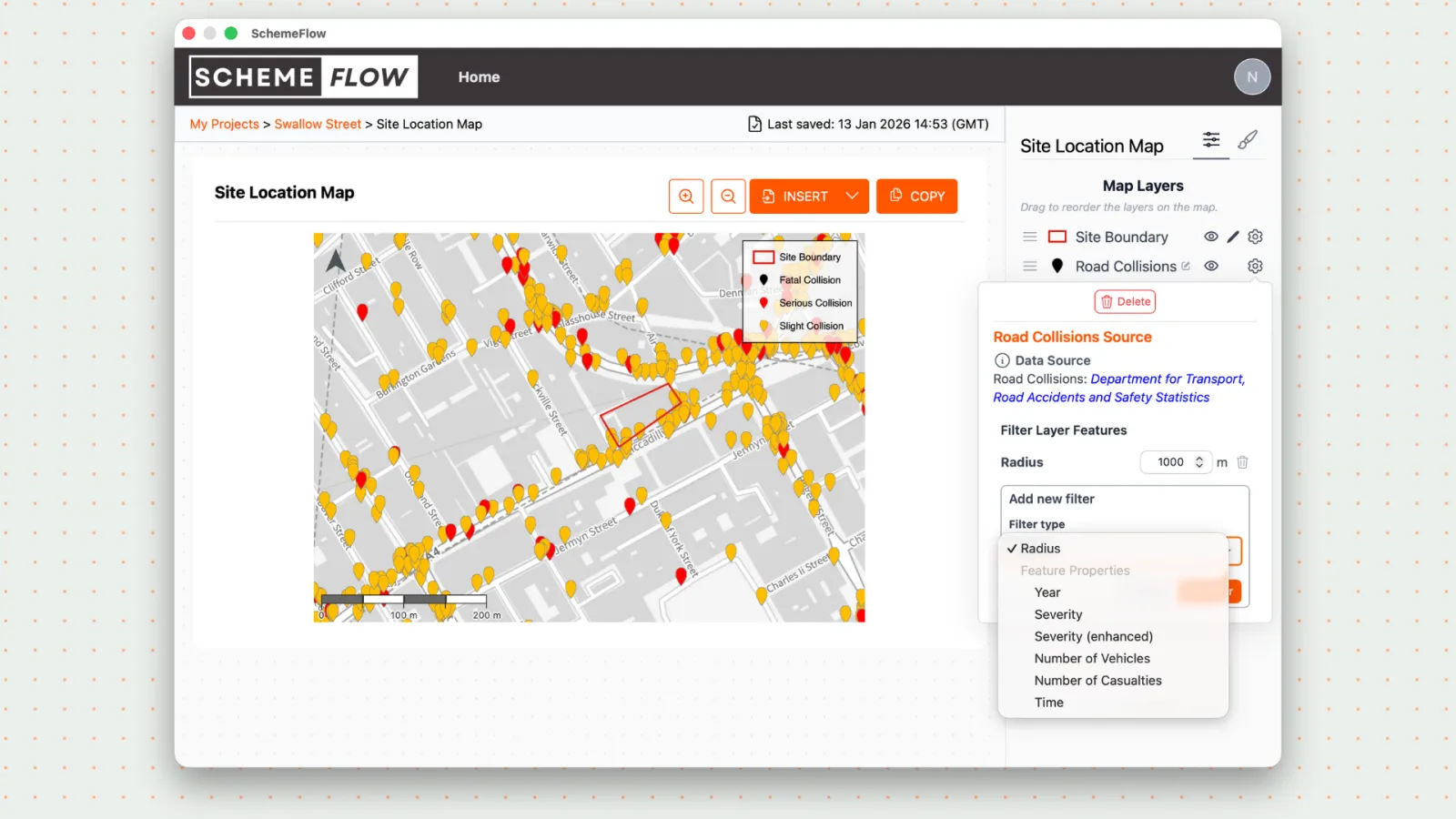
Option 2: Filter existing data using the cog icon
- Open the map containing the data layer (e.g. bus, rail, or crash data).
- Click the cog icon next to the data layer.
- Update the available filter settings.
- Click Update to apply the changes to your document.
Notes
- Available filters depend on the dataset.
- Filtering only affects the selected data layer, not the entire map.
- Changes are not applied to the document until Update is clicked.
For more about the available data sources, see Data Library.